Passkeys & Two-Factor Login
Add a second way to prove it's you — a passkey (Face ID, Touch ID, or a security key) or an authenticator app — from Account → Security.
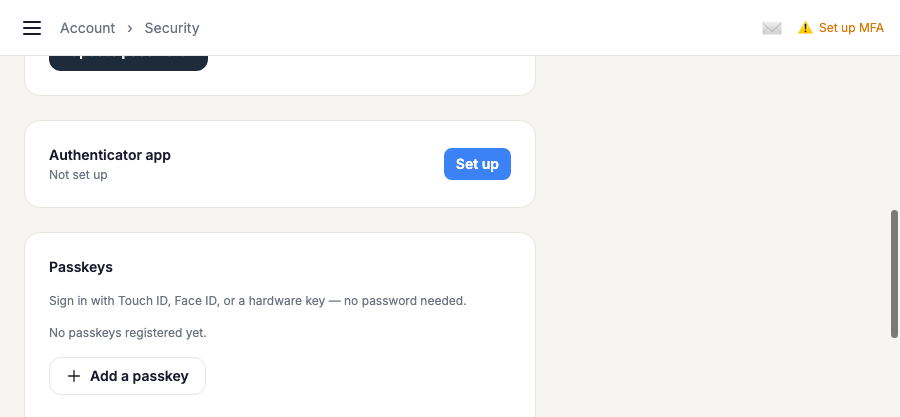
Passkeys
A passkey lets you sign in with your device's built-in unlock — Face ID, Touch ID, Windows Hello, or a physical security key — instead of typing a code. Add one from Security, and your device will prompt you to confirm. You can register more than one, so losing a device doesn't lock you out.
Authenticator app (TOTP)
Scan the QR code shown during setup with an app like Google Authenticator or 1Password, then enter the 6-digit code it generates to confirm. Each sign-in afterward asks for a fresh code.
Remembered devices
Once you complete two-factor verification on a device, that device is remembered for a grace period so you're not prompted on every sign-in — only when the grace period expires or you sign in somewhere new.
If your account requires two-factor login, you'll need at least one passkey or authenticator app set up before you can remove the other — Helperly won't let you leave yourself with zero ways to verify.